
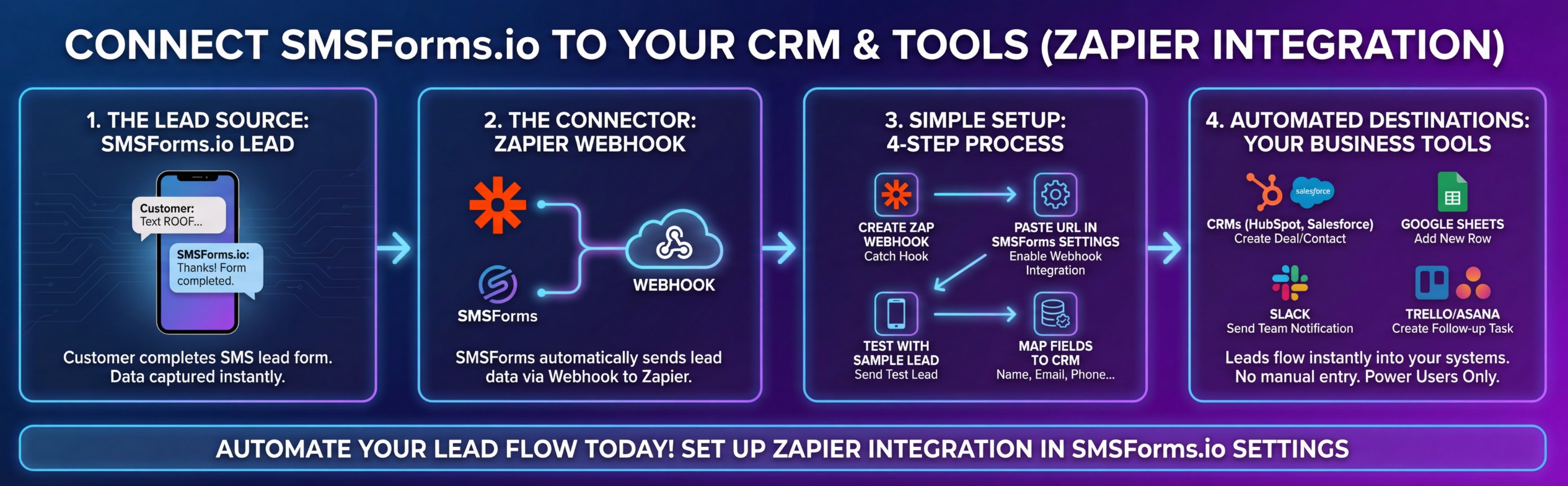
For power users who want leads flowing directly into their business systems
Probably not. Most SMSForms users are perfectly happy with email notifications.
This guide is for you if:
If you just want emails when leads arrive, you're already set. You can skip this entirely.
When someone completes a lead form, SMSForms can automatically (instantly) send that lead to other tools you use.
Examples:
You set it up once, then forget about it.
That's it.
Zapier will show you a URL that looks like this:
https://hooks.zapier.com/hooks/catch/12345678/abcd123/
Copy that entire URL. You'll need it in the next step.
That's it. Your webhook is now connected.
If you see the data, it's working. Move to Step 4.
If you don't see anything:
Now you connect Zapier to wherever you want leads to go.
Popular options:
Zapier will walk you through mapping the fields. The lead data includes:
Once you're done, turn your Zap ON.
Payload Example
{
"event": "lead.completed",
"timestamp": "2025-11-20T15:30:00.000Z",
"business": {
"id": "550e8400-e29b-41d4-a716-446655440000",
"name": "Acme Landscaping",
"phone": "+15551234567"
},
"lead": {
"id": "conversation-uuid-here",
"name": "John Smith",
"email": "john@example.com",
"phone": "+15559876543",
"service": "Lawn Mowing",
"address": "123 Main St, Springfield, IL 62701",
"timeline": "Next week",
"additional_details": "Need weekly service, backyard is fenced",
"media_urls": [
"https://api.twilio.com/2010-04-01/Accounts/AC.../Messages/MM.../Media/ME001"
],
"started_at": "2025-11-20T15:25:00.000Z",
"completed_at": "2025-11-20T15:30:00.000Z",
"message_count": 8
}
}
Field Descriptions
| Field | Type | Description |
|-------------------------|--------|------------------------------------------------------------------------|
| event | string | Always "lead.completed" |
| timestamp | string | ISO 8601 timestamp when webhook was sent |
| business.id | string | Your SMSForms business ID |
| business.name | string | Your business display name |
| business.phone | string | Your SMSForms phone number |
| lead.id | string | Unique conversation ID |
| lead.name | string | Customer's full name (Q1) |
| lead.email | string | Customer's email address (Q2) |
| lead.phone | string | Customer's phone number |
| lead.service | string | Service they're interested in (Q3) |
| lead.address | string | Customer's full address (Q4) |
| lead.timeline | string | When they need service (Q5) |
| lead.additional_details | string | Any extra information provided (Q6) - may be undefined if not answered |
| lead.media_urls | array | URLs to photos/videos customer sent (up to 15) |
| lead.started_at | string | ISO 8601 timestamp when conversation started |
| lead.completed_at | string | ISO 8601 timestamp when lead was completed |
| lead.message_count | number | Total SMS messages exchanged |
You can also get notified when someone starts but doesn't finish the form.
To set this up:
Incomplete leads are sent 6 hours after the conversation expires if the customer didn't finish.
Most people skip this. It's only useful if you want to follow up with people who started but didn't finish.
Payload Example
{
"event": "lead.incomplete",
"timestamp": "2025-11-20T21:30:00.000Z",
"business": {
"id": "550e8400-e29b-41d4-a716-446655440000",
"name": "Acme Landscaping",
"phone": "+15551234567"
},
"lead": {
"id": "conversation-uuid-here",
"name": "Sarah Johnson",
"email": "sarah@example.com",
"phone": "+15559876543",
"service": "Tree Trimming",
"address": "",
"timeline": "",
"started_at": "2025-11-20T15:25:00.000Z",
"questions_answered": 3
}
}
Field Descriptions
| Field | Type | Description |
|-------------------------|--------|-------------------------------------------------------------|
| event | string | Always "lead.incomplete" |
| timestamp | string | ISO 8601 timestamp when webhook was sent |
| business.id | string | Your SMSForms business ID |
| business.name | string | Your business display name |
| business.phone | string | Your SMSForms phone number |
| lead.id | string | Unique conversation ID |
| lead.name | string | Customer's name (Q1) - always present for incomplete leads |
| lead.email | string | Customer's email (Q2) - always present for incomplete leads |
| lead.phone | string | Customer's phone number |
| lead.service | string | Service requested (Q3) - "Not specified" if stopped at Q2 |
| lead.address | string | Customer address (Q4) - empty string if not answered |
| lead.timeline | string | Project timeline (Q5) - empty string if not answered |
| lead.started_at | string | ISO 8601 timestamp when conversation started |
| lead.questions_answered | number | Number of questions answered (2-5) |
The process is almost identical:
"My webhook isn't working"
Check these:
https://?
"I'm getting an error message"
Still stuck?
Email us at support@smsforms.io with:
We'll get you sorted out.
"Can I send leads to multiple places?"
Yes. One Zap can split to multiple destinations (Google Sheets AND your CRM AND Slack, for example).
"Does this cost extra?"
No. Webhooks are included with your SMSForms subscription. You may need a paid Zapier plan depending on how many leads you get.
"What if I don't use Zapier or Make?"
If you have a developer, they can use our webhook to connect to any system. Email support@smsforms.io for technical documentation.
"Will this slow down my lead notifications?"
No. Webhooks happen in the background and don't affect email delivery.
If you get stuck, email support@smsforms.io. Include:
We respond within 24 hours, if not sooner!
Remember: Most users don't need this. If you're happy with email notifications, you're all set. This is purely for power users who want deeper integrations.
Customers prefer texting! Join businesses that are capturing better leads with intelligent SMS conversations.